
Flashify
Tools
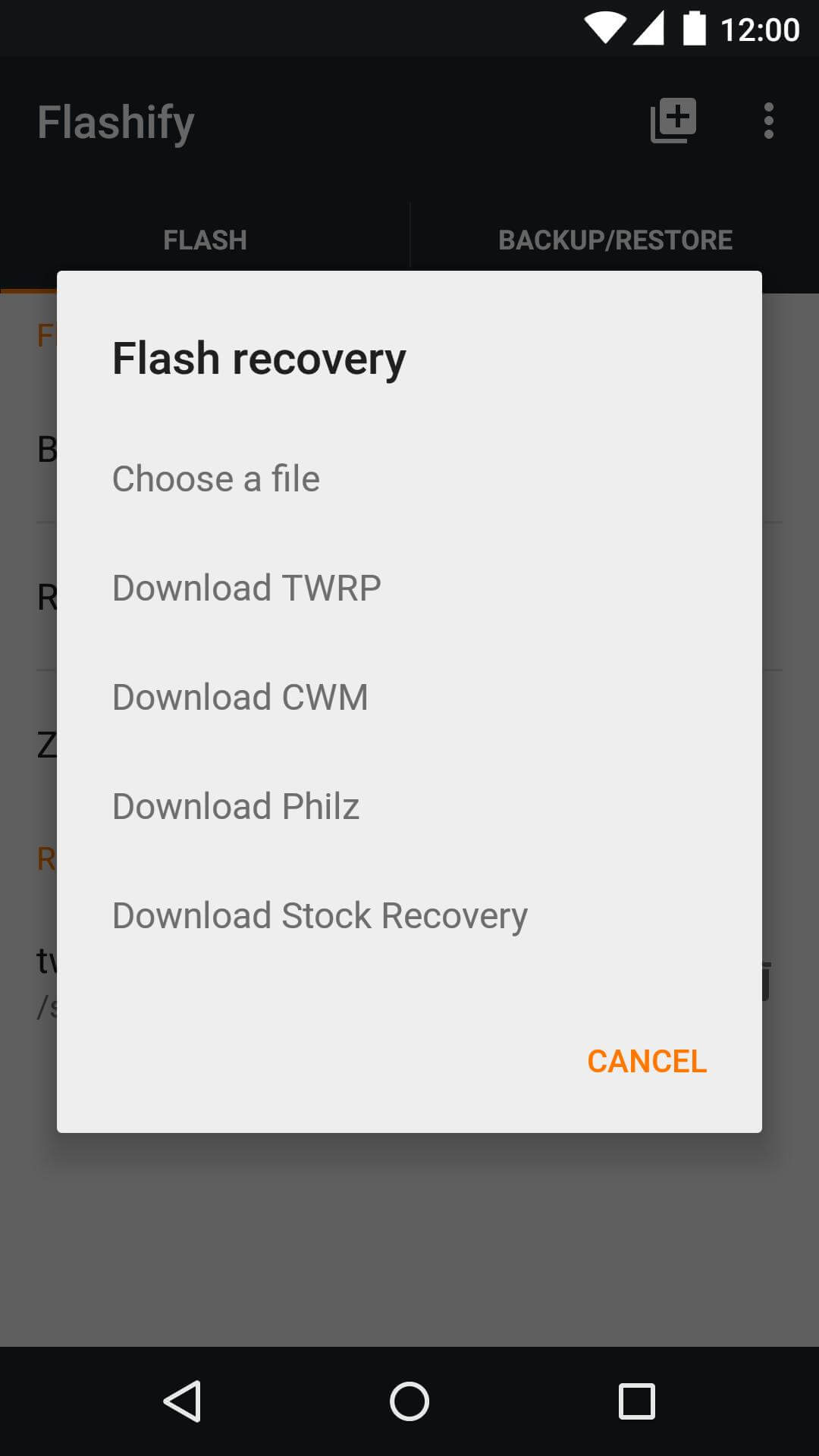
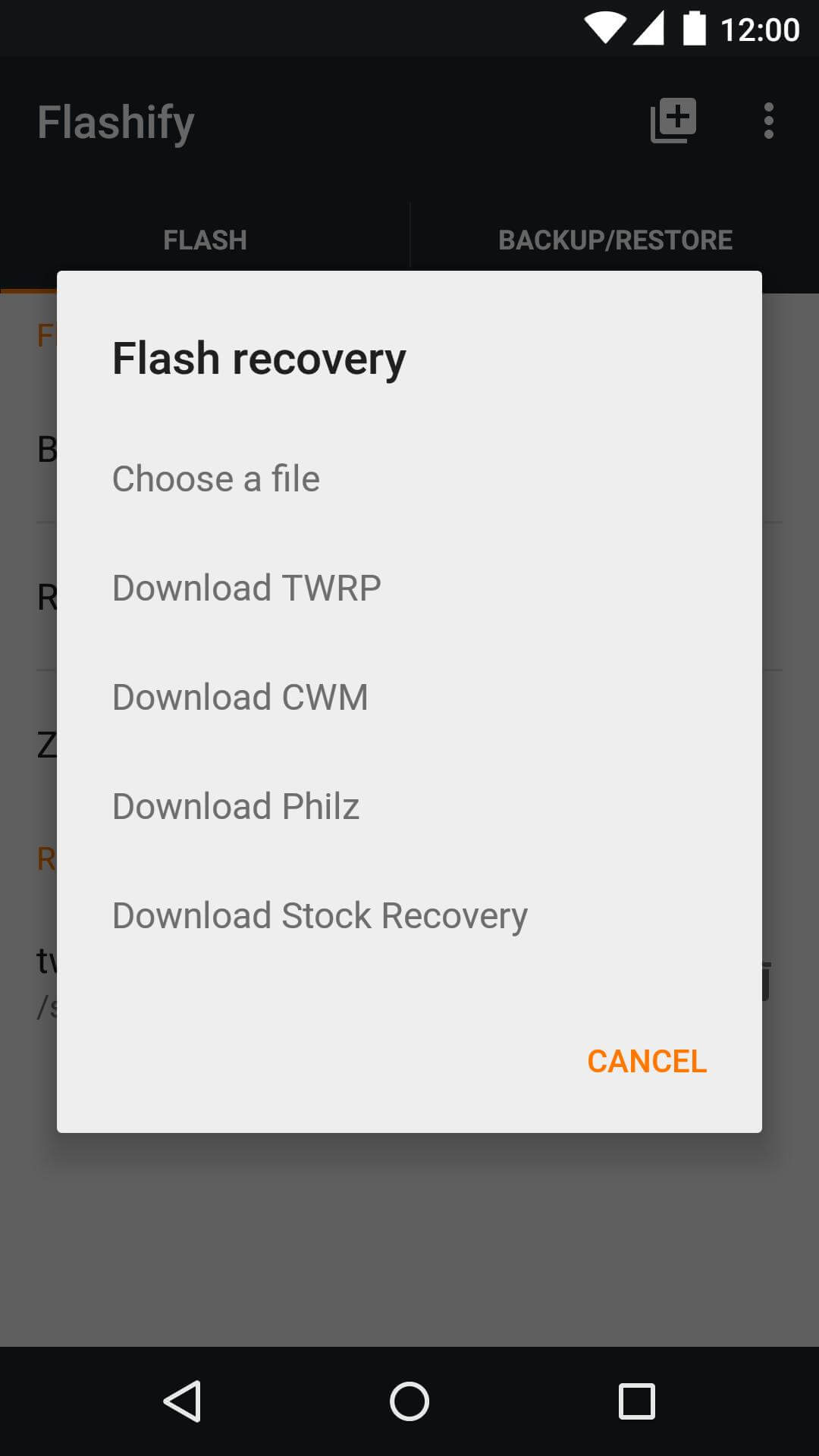
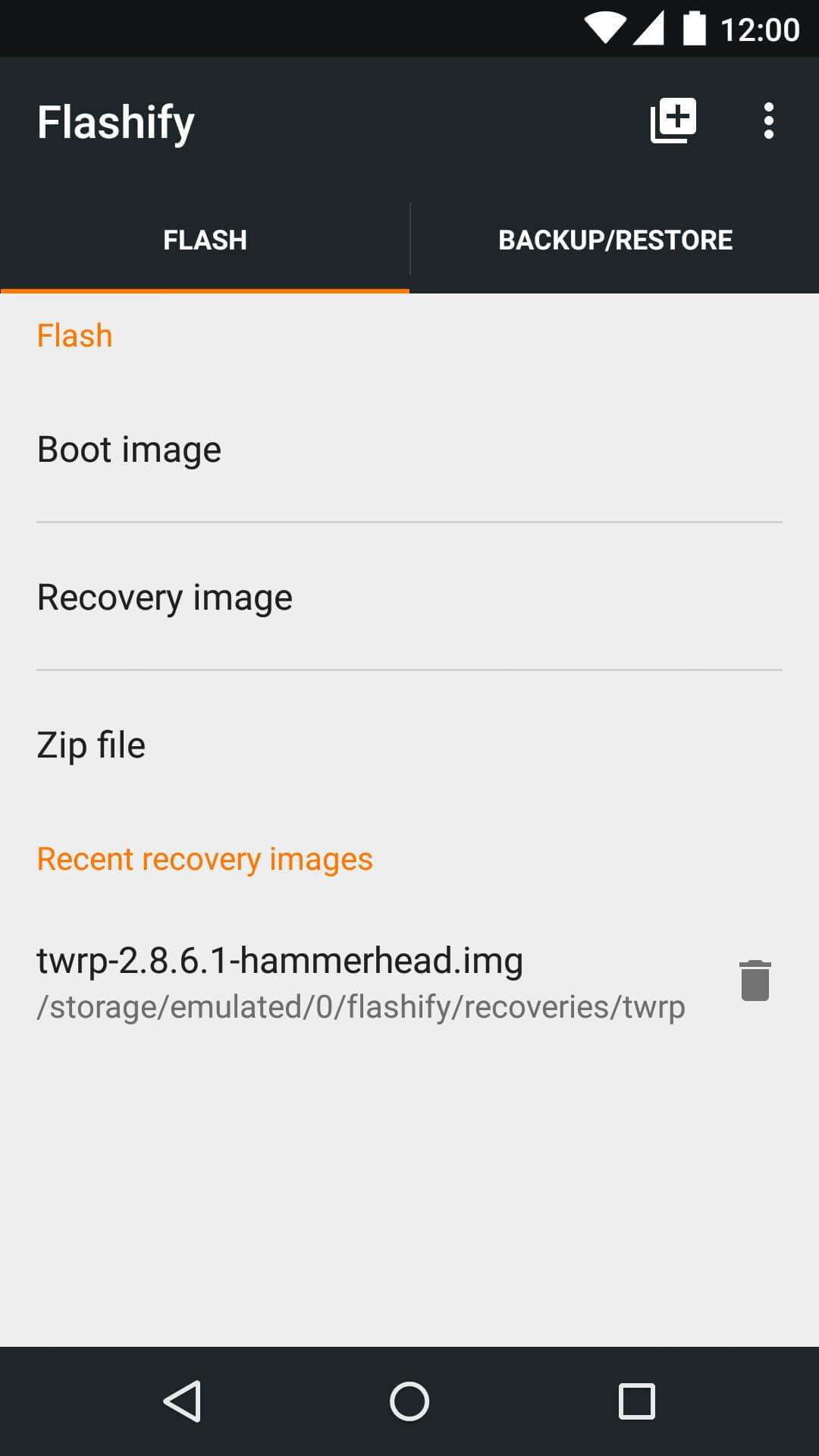

Flashify is a lightweight Android utility that lets you flash boot, recovery, and other partition images directly from your device. It is aimed at users who have root access and need a quick way to install or replace system components without a computer.
This page provides the latest version details, installation guide, compatibility notes, and practical tips for using Flashify safely.
Quick Information
| App/Game Name | Flashify |
| Latest Version | 1.9.2 |
| Developer | Not listed |
| Category | Apps / Tools |
| App Size | 12.23 MB |
| Package Name | com.cgollner.flashify |
| Last Updated | 14 January 2026 |
What Is Flashify?
Flashify serves as an on‑device flashing tool. After granting root permissions, it can write image files (such as .img) to the boot, recovery, and other partitions. The core features include:
- Flash boot and recovery images
- Backup current boot or recovery partitions
- Wipe selected partitions
- Simple UI that works on most Android versions
The app requires a rooted device and appropriate permissions to access low‑level storage. It does not provide a full custom recovery; it is strictly a flashing assistant.
Compatibility
| Android Version | ✓ Verified — Android 4.0 & Above |
| Architecture (ARM64 / 32-bit) | ✓ Verified — Supports common device architectures |
| Internet Connection | ✓ Verified — May be required for ads, updates, or login |
| Storage Needed | Not Verified |
| OBB/Data Files | Not Verified |
| Root Required | ✓ Verified — This app needs root access |
How to Install
- Enable Install unknown apps for the browser or file manager you will use (Settings → Apps → Special app access → Install unknown apps).
- Download the Flashify APK file to your device.
- Open the downloaded file and tap Install. If prompted, allow the installation from unknown sources.
- After installation, launch Flashify and grant root access when requested.
- Use the app’s interface to select an image file and choose the target partition (boot, recovery, etc.). Confirm the flash operation.
Troubleshooting
- App not installed: Ensure the APK matches your device’s architecture (ARM/ARM64) and that unknown sources are enabled.
- Crashes on startup: Verify that your device is rooted and that the rooting method provides proper superuser permissions.
- Flash operation fails: Check that the image file is compatible with the target partition and that the partition is not locked by the bootloader.
- Root permission denied: Use a reputable root manager (e.g., Magisk) and make sure Flashify is granted superuser rights.
Safety & Security
Flashify modifies low‑level partitions, so misuse can render a device unbootable. Always back up the current boot and recovery images before flashing. Because the app requires root access, review the permissions it requests and only install from a trusted source. Updates to Android or the device’s bootloader may affect compatibility, so keep the app version in line with your device’s firmware.
How Flashify Compares
| Feature | Flashify | Magisk Manager | FlashFire |
|---|---|---|---|
| Price / Model | Free | Free | Free |
| Platform | Android only | Android only | Android only |
| Standout Feature | Direct partition flashing from device | Systemless root & module support | Batch flashing and OTA rollback |
| Best For | Quick flash of boot/recovery images | Root management and custom modules | Advanced flashing with multiple images |
Alternatives
- Magisk Manager – Primarily a root manager, but also supports flashing patched boot images.
- FlashFire – Offers batch flashing, OTA rollback, and more granular partition control.
- Rashr – A simple flashing tool focused on boot and recovery images, similar in scope to Flashify.
Final Verdict
Flashify is a practical choice for users who already have root access and need a fast way to flash boot or recovery images without a PC. Its small size and straightforward UI make it convenient, but it lacks advanced features found in tools like FlashFire. Before installing, ensure your device is rooted, back up existing partitions, and download the APK from a reputable source.
Frequently Asked Questions
Flashify works only on rooted devices and modifies low‑level partitions, so you should back up existing images and use it carefully.
No, Flashify operates entirely on the Android device once it has root access.
The app is compatible with most Android versions that allow root access; exact compatibility varies by device.
Flashify can flash boot and recovery images, which are often part of custom ROM installations, but it does not replace a full recovery tool.
Flashing partitions requires superuser privileges to write directly to system areas, which only root can provide.
Make sure your device is properly rooted and that the root manager grants Flashify superuser rights.
Yes, you can uninstall it like any other app via Settings → Apps → Flashify → Uninstall.
No, root access is mandatory for Flashify to function.